
Find a scene that fits
Use the category filters or search for a name. The collection includes dance, pets, performances, action and creative scenes. Watch the whole preview to understand the movement and the way the scene ends.

Browse the full collection, preview a scene and add your photos to the roles you want to personalize.
Creations from this workspace appear here.
Browse the complete collection of AI video trends and preview a scene before adding your own subjects.
Use the category filters or search for a name. The collection includes dance, pets, performances, action and creative scenes. Watch the whole preview to understand the movement and the way the scene ends.
Open a template to see which subjects can be personalized. A solo scene may need one photo; a group can have several required or optional roles. Match each image to the label in the workspace.
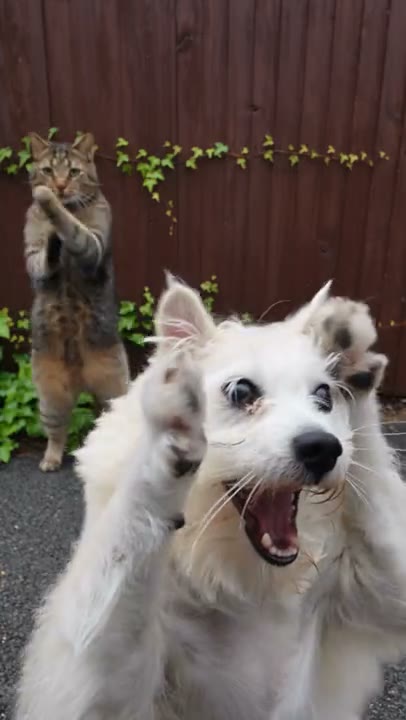
Review the model, available mode and estimated credits before generating. When the video is ready, play it through and look at faces, hands, objects and the final transition.
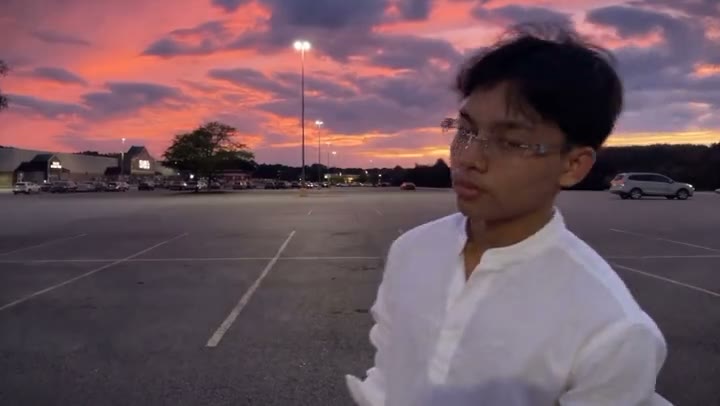
Choose an AI video trend, load its workspace and check the required inputs.
Step 1
Browse or search the collection and preview a scene.
Step 2
Load the template and add photos to its required roles.
Step 3
Check the settings and credit estimate, then generate and review the result.
What to know before you create.
They are prepared video scenes that provide a visual starting point. Select a template to load its reference and available photo roles, then add your subjects and review the setup.
No. The full directory also includes pets, performances, action and creative scenes. Use the filters to narrow the collection or choose All to browse the complete set.
Search for its name or explore the category filters. Preview the whole scene before deciding whether its action, cast and framing fit your photos.
The number varies by template. The workspace identifies required and optional roles after a template is selected.
Yes. Browse and select another scene. If changing it would replace existing inputs, review the confirmation before continuing.
Yes. Exit the selected template and upload a supported reference video in a compatible free-creation workflow. Check the model’s displayed input and duration requirements.
Audio behavior varies with the template and selected mode. Listen to the finished clip and check your rights to the source material before sharing it.
Browsing and previewing do not submit a generation. The workspace displays the estimated credits for a selected setup before you create.
The model creates a new interpretation from your photos and settings. Faces, clothing, timing and scenery can change, especially during fast movement or when subjects overlap.
Find completed results in My creations or account history. Review the video and any audio before downloading or publishing.
Return to the collection to preview a template and add your photos.