Explain the intended change
Describe the subject and what should change, then identify movement or framing you want to retain. A focused request makes the edited take easier to compare.
OriginalEdited
Start with a clip you already have and describe the next visual direction.
Your recent video tasks appear here.
The AI video editor uses a video and a written instruction to generate an edited take. The examples shown were made with Seedance 2.0 Mini; the editing workspace uses Seedance 2.5 Edit.
Prepare a source clip, describe the change and review the result.
STEP 1
Choose one MP4 or MOV between 4 and 30 seconds, up to 50 MB.
STEP 2
Write the visual change and add optional image references when useful.
STEP 3
Check the resolution and credit estimate, sign in, and review the finished take in My creations.
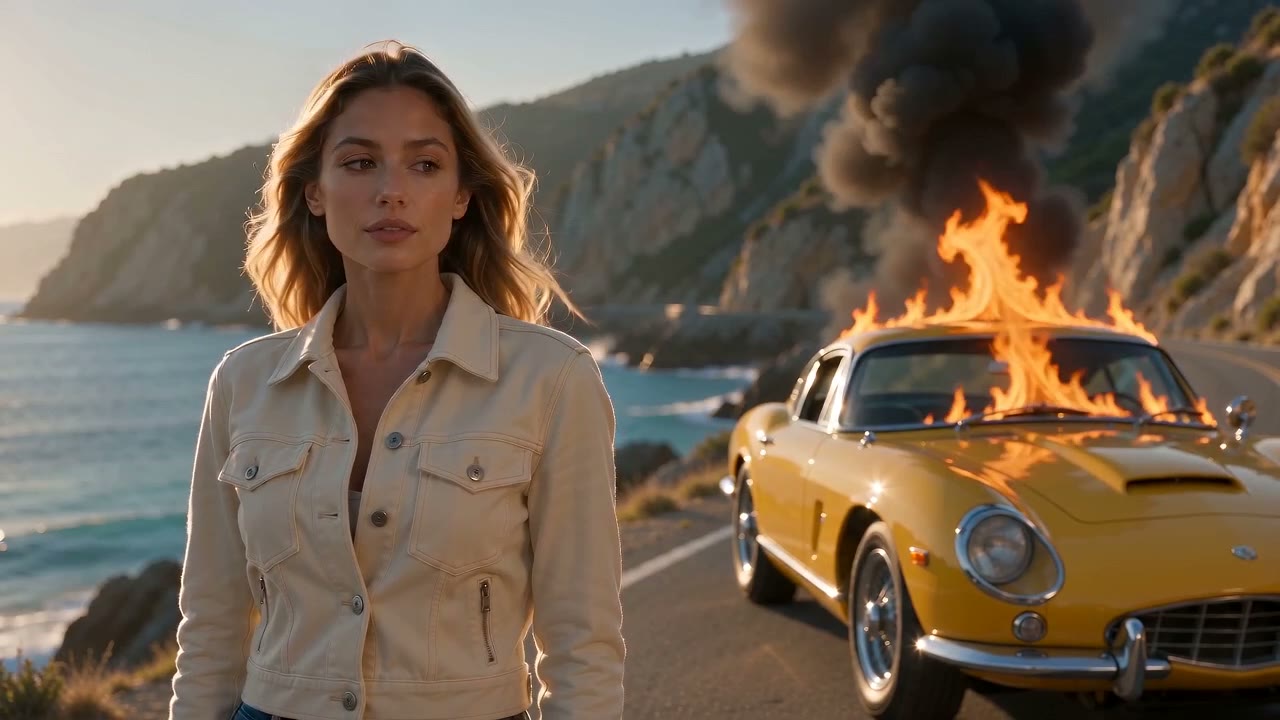
Compare a source clip with an illustrative edited example.
Describe the subject and what should change, then identify movement or framing you want to retain. A focused request makes the edited take easier to compare.
Optional images can show a desired outfit, object or visual style. Explain the role of each reference and review how well the generated result follows it.
Open a finished job in My creations and compare it with the source. Inspect faces, hands, clothes and moving edges across the clip.
Choose one change first so you can evaluate its effect.
Describe another lighting style or time of day around the action.
Suggest a different background while describing the subject and movement.
Use a reference image to indicate an object, color or outfit.
What to prepare before submitting a clip.
Choose one MP4 or MOV of 4–30 seconds, up to 50 MB, that you have permission to edit.
No. The editor requires a source video and a written instruction; image references are optional.
You can upload a compatible dance clip and describe a visual change. Motion and timing may change in the generated result, so review the whole performance.
Open My creations to play the completed take and compare it with the source.